
Copy a link, and it’s saved
Copy a link in any browser or app. A number appears in the menu bar, and one click saves it; ⌃⇧V saves it straight away. Ambrel stores the page with its title and cover image, so it looks like what it is.
Videos and posts, with their cover
Links to YouTube, TikTok and Reels are saved with their cover too, so a video you want to come back to doesn’t become just another address.
Screenshots keep their page, too
When you capture from a browser, the screenshot is saved with the page you were on: link, title and icon. It works with Safari, Orion, Google Chrome, Arc, Dia, Brave, Microsoft Edge, Vivaldi, Comet and ChatGPT Atlas. More about saving screenshots.
Everything from a website, together
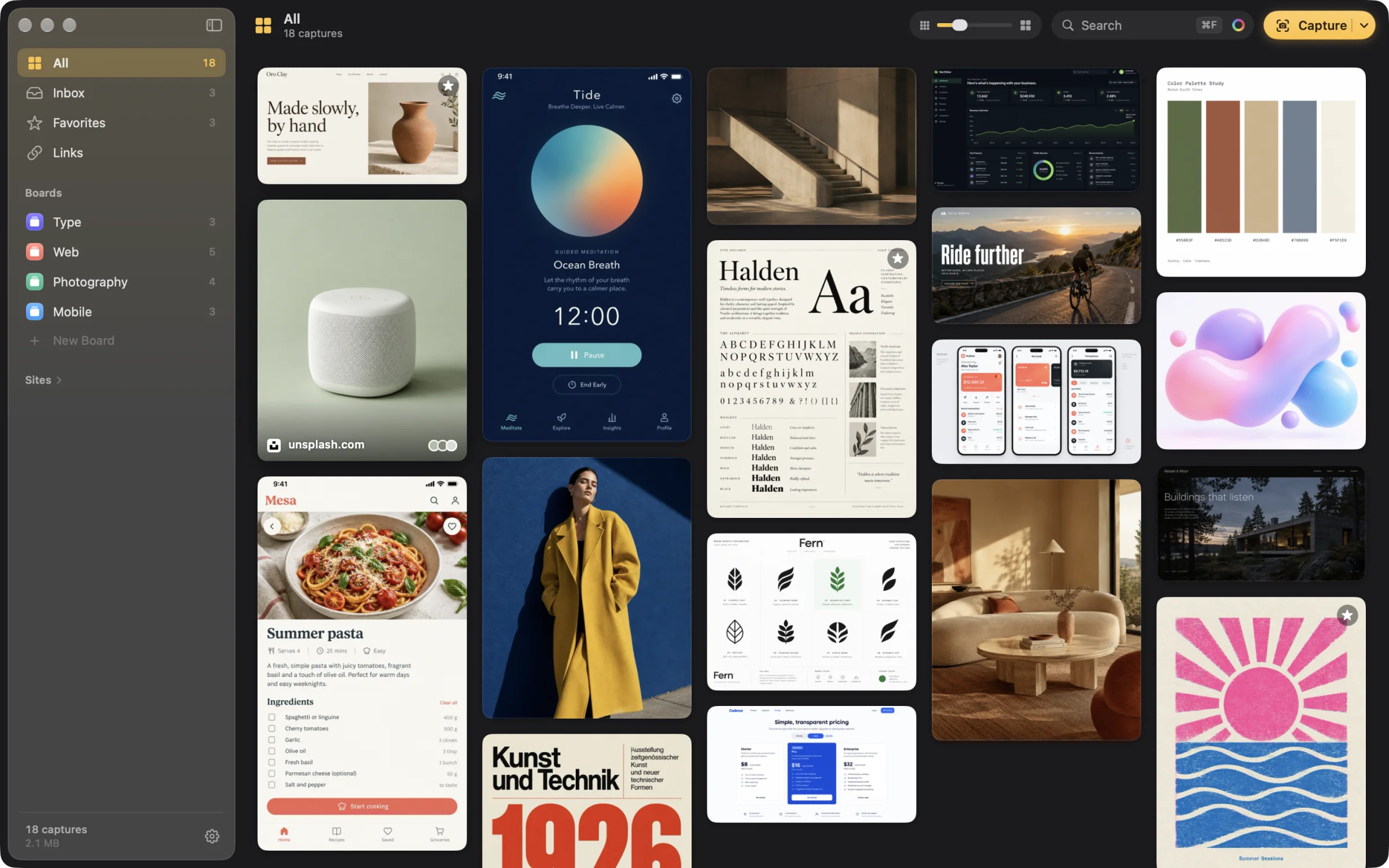
Links have their own place in the sidebar, and the Sites view gathers every link and screenshot that came from the same website. Put them on project boards, tag them or mark them as favorites.
Search titles, sites and what’s inside
Search by a word in the title, the site it came from or its tags, and use the same search to find screenshots by the text inside them. Spotlight can find them without opening Ambrel.
From the Share menu and Shortcuts
Send links from the macOS Share and Services menus, or use the Shortcuts and Siri actions to save images and links as part of your own workflows.
Take them with you
Export your library to folders by board, with each link as a .webloc file that opens without Ambrel, or export a board to PDF with its source links.